Website development and ongoing technical support are our main specialisation, which is why we are so often asked to estimate the cost of a project without any technical specification, or simply to show what such a document should look like. That is exactly why we prepared and published a typical example of a full-scale specification for an electronics and home appliances online store — so that clients can use it as a basis for writing their own briefs. This is part two: the product detail page, comparison, cart, checkout, statuses, the customer's personal section and the data exchange format.
4.5. Product detail page
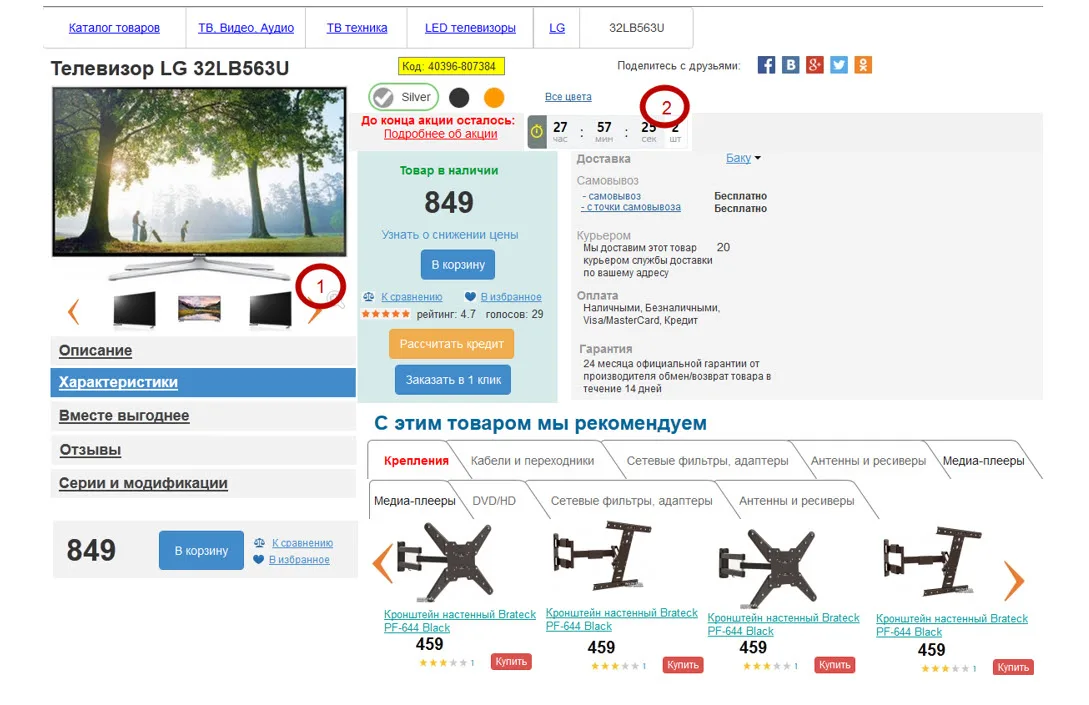
For the layout of the "Product detail page", see "page layouts" — "Product detail page". No left-hand product menu is provided: its role is performed by an extended breadcrumb trail.

Area No. 1 — main media viewing area
This area displays whatever has been selected in the "media selection strip" — a product image or a video. When there are many viewing options, video is marked with a separate icon. If the product has marketing labels, all of them are shown in the "main media viewing area".
Below the "media selection strip" there is a "list of product information sections" block used for navigation: as soon as the user picks a section, the content in area No. 2 scrolls to the selected section.
Area No. 2 — main product information
If the "colour variants" entity is defined for the product, the corresponding block is displayed; all colour variants can be viewed on a separate page.
- The "social networks" block.
- If a promotion is active for the product, information about it is shown as the promotion terms (which may contain HTML) and a countdown timer to its end.
- Product availability indicator.
- Product price — a promotional presentation format of "old price : new price" is provided for.
- "Notify me of a price drop" — a pop-up window in which the user sets the percentage at which a notification should be sent and the e-mail address for the notification.
- The "Buy" button — a pop-up window with the cart contents appears, see "Pop-up cart".
- The "add to comparison" link — adds the product to the comparison list. If the product is already being compared, the link changes to "in comparison" and, once clicked, leads to the comparison page; next to it is an icon for removing the product from the comparison.
- The "add to favourites" link — adds the product to the wish list. If the product is already in the "wish list", the link changes to "already in the list" plus an icon for removing it from the "wish list". Clicking "already in the list" leads to the "wish list page".
- "Calculate credit" — selecting credit terms and buying the product on credit; this will be implemented at the second stage, once the terms are known.
- The "One-click order" button — the user is asked to enter a phone number, after which an order with a virtual user is created in the system (if the current user was not logged in).
Information block about purchase terms
The block is the same for all products in the catalogue and its content is HTML. In the future, an individual implementation of this block is envisaged for particular groups or products. The block makes it possible to check the stock levels of this product in the warehouses and stores of the selected city.
"Buy as a bundle" and "We recommend with this product"
Bundle sale terms may apply to a product. If the bundle price is lower than the total price of the products it includes, information about the saving is displayed. If there are several bundles for a product, a slider is used to choose between them.
Bundles as objects are created manually on the site. If product No. 2 comes in a bundle with product No. 1, then the reverse, with the same promotion terms, also holds (transitivity). To define a bundle you need to specify:
- The list of products included in the bundle — no more than two.
- The price of each product when bought as a bundle or the final cost of the bundle.
- The start and end date of the bundle.
If there are no bundles for a product, the "We recommend with this product" block is shown instead — a list of recommended products from different categories. Since there can be many products, a filter is available for selecting recommended products by category. Recommended products are created on the site as separate objects of the "recommendation" entity. A "recommendation" object holds links to products that can be bought together or recommended for joint purchase. The rule of transitivity applies to the products included in the set. Several links to "recommendation" objects can be specified for each product — in that case the product sets are merged.
The "Information materials" strip
Only those blocks that actually contain information are displayed.
Product description
If the material is long, the first 10 lines are shown, the lower part is "blurred" and a "More" link is displayed that expands the whole text. The description is an HTML material and may contain any content supported by that format.
Product specifications compared with similar products
The table includes products from the same section: the current product is shown in second place, to the left of it a product with a lower price, and to the right several products with a higher price. Initially only the specifications defined as filterable for the current section are shown, plus those that differ between the selected products; the rest is expanded via the "More specifications" link. A product can be bought straight from the specifications table.
Product reviews
The first 3 reviews are shown, sorted by date in descending order, and all reviews are expanded via the "Show more reviews" link. If there are many reviews, pagination appears. Hierarchical reviews may be used. The "Leave a review" button opens a form: name, product rating from 1 to 5, review text; for a logged-in user the known fields are filled in automatically. The helpfulness of a review can be rated — this requires authorisation. Reviews are published after pre-moderation.
Product series and modifications
If a product belongs to a "series" object, the description of the series and all the products it includes are displayed. If there are many products, they are shown in a table row by row with a "Show more" function. A link is provided for viewing all products in the series on a separate page.
"Customers who viewed this product are also interested in"
A strip of products loaded on demand while scrolling. The product presentation is the standard catalogue one.
"Similar models"
A strip of products loaded on demand while scrolling. The list is built from a special product property; if it is not set — from products of the same brand in the current catalogue section. The product presentation is the standard catalogue one.
The "You recently viewed" block is displayed separately. The lower "footer" block — its content and functionality are the same as those described in the "home page" section.
Behaviour of the areas while scrolling
- Synchronous movement. While scrolling down, area "1" and the detailed product description area "2" move up synchronously until the upper part "3" disappears beyond the edge of the browser window. In other words, both areas move upwards as long as the "site header" is within the visible part of the browser window.
- Pinning area "1". Once the "site header" area "3" has disappeared beyond the top edge of the browser window, area "1" stops moving upwards. Area "2" continues to move. If the "Buy" button in area "2" leaves the visible area, the "Buy" button together with the price appears below area No. 1.
- Freezing. Area "1" stays still (frozen) until the lower "similar models" strip appears in the visible area of the browser.
- Reverse scrolling. If the user starts scrolling up, area "1" begins to move down once its upper part is level with the upper part of area "2".
- Unfreezing. When the lower "similar models" strip appears in the visible area of the browser, area "1" resumes moving upwards in sync with area "2".
4.6. The "Product comparison" page
See "page layouts" — "Product comparison".

The product comparison page can be opened from any place where the corresponding link is provided. Products from the same category can be compared. If products from different categories have been selected for comparison, the user is offered to compare them by category as well.
- Add a product to the comparison table.
- Show only the differences in specifications or show all specifications.
- Remove products one by one.
- Remove all products from the comparison.
Zone No. 1 shows product images, names, prices and marketing labels. Zone No. 2 is used to display product specifications. Specifications that differ are highlighted in colour.
4.7. Cart
See "page layouts" — "Cart". In the cart it is possible to change product quantities, remove items and add more from the suggested product lists — without going back to the catalogue. Two presentation formats are available: the pop-up cart and the full cart.
Pop-up cart
After the "Buy" button is pressed on any page where a product can be bought (product catalogue, product detail page and so on), the user is shown the "pop-up cart". The visual treatment of the "Continue shopping" link is a de facto standard: it must be a noticeably less prominent control than "Place order".
The cart displays:
- The products and bundles selected for purchase.
- "Promotional offers" — bundles — are highlighted separately: such products cannot be removed individually, removal is only possible for the whole bundle.
- The "proceed to checkout" link — the user is taken to "Step No. 1" of the checkout.
- The "One-click purchase" function.
- "Continue shopping" — the link returns the user to the previous place.
Full cart
It contains the same areas as the "pop-up cart" and is supplemented by the "buy as a bundle" and "we recommend with this product" areas. Products bought from these areas are automatically added to the current cart. A detailed description of how the "buy as a bundle" and "we recommend with this product" blocks are built and how they work is given in the "product detail page" section.
4.8. Checkout
Placing an order consists of three stages, and the current stage is shown in the heading. If the user is logged in, step No. 1 is not displayed — checkout starts at step No. 2.
- Step No. 1. Customer identification. The page header and "footer" are replaced with "minimal" ones. The "one-click order" function is available. A customer who is not logged in is given the option to enter a phone number and to indicate whether they are a new or an existing customer. PHONE or EMAIL is used as the user identifier in the system: the system checks whether a user with the entered identifier exists and, if so, offers the password recovery procedure. An external SMS gateway, password reminder and external authorisation can be connected if PHONE or EMAIL are readable in the external system profile (Facebook and the like).
- Step No. 2. Delivery, payment, details. Selecting a city from a list with an auto-detection function. Orders are placed for private individuals only; functionality for legal entities may be added in the future. During checkout, existing profiles can be used and new ones created if changed details are entered.
- Step No. 3. Confirmation. Information about the placed order and its product composition is displayed. Information is shown about a promotional offer for any product at the "Average order value increase after purchase" price: if this product is selected, it is added to the order that has just been created. The "Bestsellers" block is also displayed.
To comply with legal requirements, during registration the user must tick a checkbox reading "I agree to the registration…", and the text must be formatted as an includable area. The cart contents are shown collapsed by default: the cart cannot be edited at this step, but it is possible to go back to the "Cart" page to edit it.
Delivery methods
- Self-pickup — requires entering additional information about the pickup point.
- Courier delivery — requires entering additional information about the delivery address and time.
- Delivery by postal service — requires entering additional information about the delivery address, and the cost is calculated.
Marketing tools can be used: calculate the delivery cost, free delivery if the order value is over XXX, and others.
Payment methods
The payment method depends on the delivery method selected earlier. Payment options:
- Cash on delivery.
- Bank transfer — an invoice is generated from a given template.
- VISA online — connection of an external gateway; after successful payment the order moves to the "Paid" status immediately after checkout.
- External gateway for electronic money — after successful payment the order moves to the "Paid" status immediately after checkout.

The user is asked to enter personal details for use in personalised tools (full name, EMAIL and so on) and to leave comments on the order. The order composition is shown in full plus the delivery cost; there is a function for going to the page where the order composition can be edited. The "Confirm order" button creates a new order with the "New" status and creates or updates the user's delivery profile.
4.9. Business processes and order statuses
- New requests. Orders that have just arrived receive the "New" status; "one-click" orders are also "New". An e-mail notification about the new order is sent, according to a template, to a single mailbox shared by all sales staff.
- Taking an order into work. Once a request has been taken into work, the manager must move it to the "in progress" status.
- Postponing. If processing a request is postponed for some reason — no answer on the phone, checking stock levels, clarifying the configuration — such requests are moved to the "postponed" status.
- Inbound duty. Operators take requests, replacing one another every hour. This period is called "inbound duty".
- Operational work. The time free from "inbound duty" is called "operational work time".
- Unconfirmed requests. Unconfirmed requests awaiting some decision are called "in progress".
- The duty rule. During their hour of "inbound duty" an operator calls customers ONLY about requests that have just arrived and is not allowed to perform operations on requests with the "in progress" status.
- Operational work priorities. During "operational work" an operator processes requests with the "in progress" status. The priority order is: their own requests from the current day, other operators' requests from the current day, all "in progress" requests from the previous day.
- Processing deadline. Requests with the "in progress" status must be processed within 2 days or moved to the "Rejected" status with a description of the reason.
List of order statuses
| Status | Sub-statuses and conditions | Exchange with the accounting system |
|---|---|---|
| New | — | — |
| In progress | To be called; No answer | — |
| Postponed | To be called; No answer | — |
| Confirmed | Payment confirmation for non-cash settlement | Sent to the accounting system |
| Paid | — | Sent to the accounting system |
| Being assembled | Awaiting goods; Assembly | Received from the accounting system |
| Shipped | — | Received from the accounting system |
| Rejected | With a description of the reason | — |
The format of the data exchanged between the site and the accounting system is described in the "Exchange with the accounting system" section.
4.10. User section and information pages
Personal details
See "page layouts" — Personal section "Customer details". Personal details can be changed; the identification details that cannot be changed are PHONE or EMAIL. The user can specify additional contact options (EMAIL, PHONE) and mark the preferred one. User profiles are available and can be edited, and new ones can be created. Statistical information: total number of orders, total order value. Marketing tools: personal cumulative and other discounts, the rules for accruing and using discounts, and the purchase amounts required to unlock new marketing benefits. Shown separately: "Subscription details" and "You recently viewed".
Order history
See "page layouts" — Personal section "Order history". A table of orders with statistical information: number of orders, number of products, total amount, and a button for requesting a discount. Columns: date, order number, amount, order status. Each order can be expanded to view its composition and other information in detail. At the bottom — "You recently viewed".
Wish list
See "page layouts" — Personal section "Wish list". The products selected by the user, in the standard catalogue presentation, with the option to remove them from the wish list. Pagination is used. At the bottom — "You recently viewed".
Waiting list
See "page layouts" — Personal section "Waiting list". The products selected by the user via the "notify me of a price drop of XX%" and "notify me when back in stock" functions, in the standard catalogue presentation, with the option to remove them from the lists. Pagination is used. At the bottom — "You recently viewed".
Our store locations
The page contains an interactive map displaying the stores in the chain. A store can be selected on the map to obtain information about its address, opening hours, contacts and photographs. The information can be filtered by specifying the city and the store type. The data can be presented as a map and as a list.
Search results
The page contains a field for entering a search query. Search results are returned and, if there is a lot of data, they are paginated. The appearance of a result: the title of the material found, a short description, and its location within the site structure.
Information pages, sitemap and 404
These pages use the "Standard information page" layout. The working area can contain "static data" entered through the static page editor, or dynamic data built from information block elements by selecting the required data. If a large amount of dynamic data has to be displayed, pagination can be used, and the number of items per page is set administratively.
- The "About the store" page.
- Delivery terms.
- Payment terms.
- Help.
- The information reviews page — pagination plus a detail page for each review.
- A page listing products selected by given marketing labels.
- Contacts.
The sitemap is built as an expanded structure of the site: static pages and the product catalogue down to the deepest nesting level. The "404" page contains the reason for the error and links to the home page and to the sitemap page.
5. Conditions for migrating the project to a new platform
Since the project already exists and is being migrated to a new platform, the following rules must be observed.
Page-by-page 301 redirects from the current page URLs to the corresponding URLs on the new CMS must be set up without fail. This is a mandatory condition for the migration.Section 5 of the specification — "Conditions for migrating the project"
- 301 redirects. "All URLs" means migrating truly every URL, including product pages, filter pages, articles and so on. It is highly desirable to keep the "old" URLs during the move — this will make it possible to migrate the site as quickly as possible with minimal traffic losses.
- Features of the new platform. The specifics of the new CMS must be taken into account during the migration. No duplicate texts, duplicate pages, duplicate metadata and so on must appear on the site.
- robots.txt. The robots.txt file must also take the specifics of the new CMS into account. Product sorting pages, the admin panel, the cart, the site search pages and the user authorisation pages (registration, password recovery and so on) must be closed from indexing.
- XML sitemap. It must be possible to maintain an XML sitemap with automatic addition (dynamic generation) of new pages whenever new URLs appear. The sitemap must contain the new page URLs (if the URLs have changed).
- Image sitemap. An image sitemap must be prepared, taking the new post-migration URLs into account.
- A single URL format. Category, bundle, news and article pages must be static and brought to a single format — with or without a trailing slash. This sometimes gets out of order after a move.
- Images on our own domain. All images must be hosted on the domain's server. In addition, title and alt attributes must be set for them.
- Checking internal links. If URLs change, the new platform must be checked to make sure there are no links to old pages. They may be somewhere in articles, news items, product cards and so on — such links must be replaced with the new URLs.
6. Format of the XML files for product exchange
This section describes the data storage model, the structure of the import.xml file and the structure of the offers.xml file.
6.1. Structuring product stock by store
The system uses two levels of structuring to identify a specific store: city and store (identified by address). When stock data arrives, every product must carry the following information: the total quantity across the whole store chain and the stock level in a specific store.
6.2. Data storage model
Under this model all products are stored and accounted for as separate items. No logical link between products and their qualifying SKUs is envisaged. For example:
- iPhone 6s Plus 16Gb Red
- iPhone 6s Plus 16Gb White
- iPhone 6s Plus 16Gb Gold
These are all different products, accounted for as separate items and in no way logically linked to one another in the product card.
6.3. Structure of the import.xml file
An example export is contained in the attached import.xml file. The classifier contains the main control information.
Groups — the tree structure of product groups is exported exactly as it exists in the accounting system. Processing rules:
- Its own structure. The site will have its own section structure.
- New groups. If new groups appear in the export, the site will place them in the root of the sections in an inactive state — until individual filtering properties have been specified for the group, the group has been correctly placed in the site's group tree and it has been activated.
- Missing groups. If a group that previously existed on the site is missing from the export, that group must be deactivated on the site.
- Tree depth. We limit the tree depth to three levels.
Promotions — used for transferring promotions (when a second product comes as a gift) and bundles (when products are sold at a price lower than the sum of their individual prices). The following are transferred: promotion ID; name — the title under which the promotion will be displayed; logic — not used for now, "OR" is set by default; start date — the date from which the promotion is valid; end date — the date until which the promotion is valid; products — the list of products that come as a gift with the product that has a link to the promotion.
Properties — the descriptive part of the tree listing the product properties. The catalogue contains the products, their descriptions, their assignment to groups, specifications and properties; the "СодержитТолькоИзменения" flag indicates a full or partial export (to be discussed).
| Product node | Purpose |
|---|---|
| Ид | Product identifier |
| ШтрихКод | Barcode of the item |
| Артикул | Article number of the item |
| Наименование | Product name |
| ЗначенияРеквизитов | Values of the item's attributes |
| ВидНоменклатуры | Own or purchased goods |
| ТипНоменклатуры | Product or service (will not be used) |
| Полное наименование | Alternative name; may be used for display in the product card or for SEO |
| СтавкиНалогов | Tax rates |
| Группы | Assignment of the product to groups, may be multiple |
| Описание | Full product description |
| Картинка | Image for the PREVIEW |
| ЗначенияСвойств | Subtree with the values of the product properties: Ид — a link to the property, ЗначениеСвойства — may be multiple, Значение — an additional description |
| Характеристики товара | A "name — value" table of the product specifications |
Groups of specifications can be combined: to do this, the name node must contain the "#" character and the value node must contain the name of the group. For example, the export contains, one after another, a "#" separator row with the group name "Operating system", followed by the specifications of that group — "Operating system: Android", "OS recovery software: on FLASH". Then another "#" with the name "Processor" and its specifications: "Processor manufacturer", "Processor type: Snapdragon S4 Pro", "Processor clock speed, GHz: 1.5", "Integrated graphics core". Next comes "#" with the name "RAM", and so on for all the groups.
6.4. Structure of the offers.xml file
An example export is contained in the attached offers.xml file.
- The classifier — contains the information needed to link the offers to the product catalogue by ID.
- ПакетПредложений — the main information about prices and stock.
- ТипыЦен — describes all the price types exported to the site: Ид, Наименование (price type), Валюта, Налог.
- Предложения — product offers (price, stock): Ид, ШтрихКод, Артикул, Наименование.
- Цены — there may be several, for example retail, promotional, dealer and so on: ИдТипаЦены, ЦенаЗаЕдиницу, Валюта, Единица.
- Количество — the quantity in stock.