A development team's worst nightmare is working without a technical specification while committing to a verbally agreed result: by a fixed deadline and for a fixed price. Below is an example of how to insure yourself against that. This is a real specification built on USE CASES, suitable for development on any framework, Laravel included.
What is inside this example
The document describes a school management system: web interfaces for the principal, the records clerk, the teacher, the student and the parents, timetable composition, the allocation of teaching hours, an electronic register, homework, messaging and the rules for awarding grades.
The structure here is simple and repeatable. First come the elements of the problem domain and the rules attached to them. Then the workstations, each with a list of what it has to contain. And then the most important part: a set of USE CASES, where every scenario is written up to the same template.
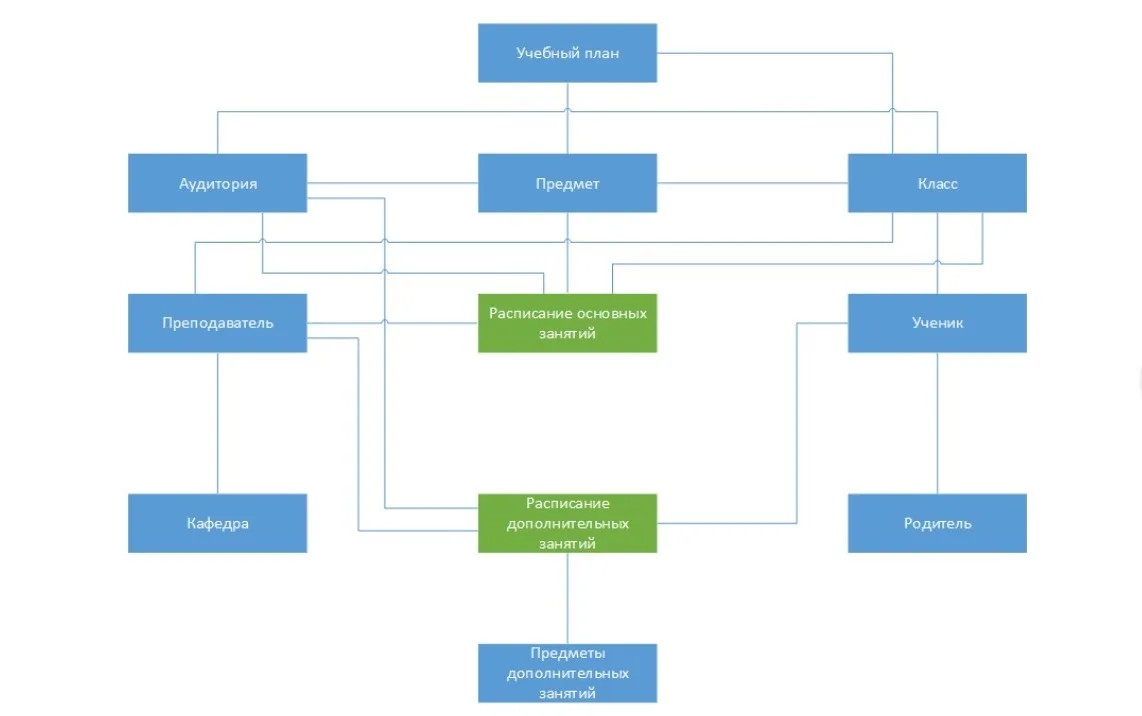
Domain elements and workstations

Workstation “School principal”
Development of a workstation operated through a web interface:
- lesson and bell timetable for the whole school;
- “Staff list”;
- “Employee record card”;
- “Class list”;
- “List of students in a class”;
- “Student personal file”;
- access to “school-wide documents”.
Workstation “Records clerk”
Development of the records clerk workstation through a web interface. In the source document this item is cut off — all that follows is the word “ability”, with no list of functions.
Workstation “Teacher”
- Teacher's plan;
- Lessons in a class;
- Teacher's timetable;
- Notification system;
- Class list;
- Students in a class;
- Student record card;
- Homework discussion.
Workstation “Student”
- Student's lesson timetable;
- Grade book;
- Homework;
- Messaging system.
The rules for students are a static page, the same for the whole school, available for responsive viewing.
Workstation “Parents”
- Student's lesson timetable;
- Grade book;
- Homework;
- Progress report;
- Teacher list;
- Curricula (Teacher's plan);
- Messaging system.
The rules for students are likewise a static page, the same for the whole school, available for responsive viewing.
How a USE CASE description is built
Every scenario in the document is described using one and the same set of fields. That makes it possible to read the specification selectively: the developer looks at the constraints and postconditions, the client at the description and the priority.
| Field | What it holds |
|---|---|
| ID and Name | Number and name of the scenario: UC-5, UC-10, UC-20 and onwards. |
| Primary Actor | Who initiates the action: content manager (secretary), administrator, head of studies, teacher, student, parents or an external system. |
| Secondary Actors | System — the system itself as a participant in the scenario. |
| Description | A detailed description of the behaviour: what the user does, what the system checks and displays. |
| Trigger | The event that starts the scenario. |
| Constraints (CON) | Boundaries and prohibitions: uniqueness, value ranges, availability of modes. |
| Preconditions (PRE) | What has to be true before it starts: access rights, the presence of reference lists and entities. |
| Postconditions (POST) | What has changed in the system once it is done. |
| Business rules | References to the rule set: BR-26, BR-28, BR-CURRICULUM1, TR-1 — TR-27 and so on. |
| Priority | Low or High — a hint about where to start development. |
Reference lists and base entities
UC-5. Maintaining the system reference lists
Primary Actor: content manager (secretary), administrator. Priority: Low.
The system holds several base reference lists that are populated at the outset and rarely change. Their data is used everywhere. The most frequent action is picking the required item from a reference list whose display order has been configured in advance. The pick is sometimes preceded by a search on the first characters of the name.
Rarely used actions are performed in a dedicated settings section: creating a new record, editing a record, ordering and reorganising — setting the default display order. The order that has been set is used everywhere the reference list is applied.
The typical field set of a system reference list: Active, Name, Sort order. While editing, the system checks the uniqueness of the mandatory “Name” field.
System reference lists:
- Classroom types;
- Fields of knowledge;
- Departments;
- Teaching type;
- Academic year — 2016/2017, 2017/2018;
- Education;
- Level of foreign language proficiency;
- Qualification category.
Trigger: the user initiates the need to change the selected system reference list. CON-1: the name of an item must be unique within the reference list. CON-2: a reference list item cannot be deleted if it is used somewhere in the system. PRE-1: the user is authenticated and has sufficient rights to manage the system reference lists.
UC-10. Add a new classroom, change an existing one
Primary Actor: content manager (secretary), administrator. Priority: Low.
The user has to fill in at least the mandatory fields “classroom name” and “number of student seats”. The “classroom name” is entered as text and has to reflect the purpose of the room; it may contain distinguishing details for unambiguous identification: the room number, the subject taught there, the classes that use it most often.
The user can restrict the subjects taught in the classroom to a specific list, choosing the permitted ones from the “subject” reference list. For convenience, the classroom reference list supports classification by the “classroom types” system reference list. A classroom can belong to only one group.
The “Active” flag is set to “Yes” by default. If the flag is inactive, the classroom will not be taken into account when the timetable is composed automatically. To save changes the user performs the “Save” action. The system checks the uniqueness of the “classroom name”, blocks the creation of classrooms with identical names, saves the data or reports the constraints that have been hit. The functionality is available in the desktop version.
CON-1: the classroom name must be unique within the system. CON-2: the number of student seats is a natural number, controlled within the range [1 — 500]. PRE-1, PRE-2: the user is authenticated and has the rights; all the required related reference lists exist in the system. POST-1: a new instance of the entity with the entered characteristics appears in the system. Business rules: BR-26, BR-28, BR-30, BR-32, BR-34.
UC-20. Add a new academic subject, change an existing one
Primary Actor: head of studies, administrator. Priority: Low.
The user has to fill in at least the mandatory fields “Subject code”, “Subject name”, “Subject type”, “Field of knowledge”. The “Subject name” is entered as text and must be unique within the system. The values of the “Subject type” and “Field of knowledge” properties are set from the corresponding reference lists; for the “Field of knowledge” property the corresponding system reference list is used.
The “Active” flag is set to “Yes” by default, the “sort order” flag to 500, and the “subject difficulty” flag to 5. To save changes or add a new academic subject the user performs the “Save” action. The system checks the uniqueness of the “Subject code” and the “subject name”, validates the mandatory fields, blocks the creation of subjects with identical names and codes, saves the data or reports the constraints. The functionality is available in the desktop version.
CON-1: the name of the academic subject and the subject code must be unique within the system. CON-2: the mandatory fields must be filled in. POST-1: a new instance of the entity with the entered characteristics appears in the system.
UC-35. Add a new teacher, edit an existing one
Primary Actor: head of studies, administrator. Priority: Low.
Mandatory fields: full name, “Department”, “Field of knowledge”. The full name is entered as text and must be unique within the system. The values of the “Department” and “Field of knowledge” properties are set from the corresponding system reference lists.
Availability conditions can be defined for a teacher by day of the week (methodology days) and/or by specific lessons on specific days of the week. By default a teacher is available for all lessons.
Optional data the user may fill in or edit:
- Initials — used in the timetable;
- “Subjects taught” — a set of “subject” items;
- “Phone” — a multiple value, one of which is set as the primary one;
- “EMAIL” — a multiple value, one of which is set as the primary one;
- Date of birth;
- Education — filled in from the “Education” system reference list;
- Gender;
- Qualification category — from the system reference list of the same name;
- Level of foreign language proficiency — from the system reference list of the same name;
- Notes;
- Sort order — a number used for ordering when displayed in a list.
To save changes to a “Teacher” item the user performs the “Save” action. The functionality is available in the desktop version. CON-1: the teacher's full name must be unique. CON-2: the mandatory fields must be filled in.
Curricula and teaching hours
UC-40. Add a new curriculum, edit a curriculum
Primary Actor: head of studies, administrator. Priority: Low.
To identify a curriculum, the user may state in its name which mandatory programme it is based on and which academic year or class it was composed for. Clarifications can also be added as an optional text description. Curricula can be used to compose timetables in subsequent years for other classes.
The composition of a curriculum is determined by the school administration and contains the necessary data about the subjects studied and the weekly teaching hours. The user can create an individual instance of a curriculum for every class. If the same plan is used in several classes, the user must be able to apply one that already exists. If the user changes a plan used in several classes, a warning message must be issued and the creation of a copy offered.
While composing the plan, the user indicates which subjects and hours belong to the mandatory programme and which to the supplementary package. While doing so, the user must see summary information about the number of hours per week:
- Total hours (excluding physical education);
- Weekly hour ceiling;
- Hours planned per semester = average (semester No. 1 / semester No. 2);
- Total hours + physical education.
The weekly hour ceiling is derived from the properties of the class. For every subject the user defines the “teaching type” from the corresponding system reference list — for example, invariant (mandatory programme), optional subject, elective course. A completed curriculum can be printed using a separate print form.
POST-1: an instance of the entity with the entered characteristics is stored in the system. Business rules: BR-CURRICULUM1, BR-CURRICULUM2.
UC-50. Creating and editing the teaching hours
Primary Actor: head of studies, administrator. Priority: High.
The working teaching hours are a scheme for distributing the class curricula among the teachers so that the curricula are fulfilled, the teachers receive a matching hour load, the students in the classes are divided into groups, and all of this takes the constraints of each resource into account.UC-50 · Description
The scheme for distributing teaching hours is created without reference to specific days of the week or classrooms. The user creates a distribution variant covering all the classes of the school with the available teachers. The distribution is performed for a full academic year, taking into account the academic semesters it comprises, and corresponds unambiguously to the curricula approved for the current academic year.
A separate teaching-hours scheme is created for every academic year, because each uses a unique set of parameters and resources:
- the set of classes and their composition;
- curricula — may change from year to year;
- academic subjects — may change;
- the set of teachers — changes every year.
Teaching-hours schemes from previous years can still be opened and viewed. One scheme corresponds to each academic year. When creating a new hour load, the user specifies the limiting factors and parameters: the academic year and the duration of each academic semester.
UC-60. Distributing curricula among teachers
Primary Actor: head of studies, administrator. Priority: High.
For every class the user has a list of subjects with the hours that need to be distributed and a list of teachers among whom the corresponding subjects can be distributed. For convenience, the subject list is grouped and ordered according to the system reference list of fields of knowledge.
When deciding which teacher to assign to a subject in a particular class, the user relies on information about the possible teachers available for that subject (configured in the teacher's record card).
Once a teacher has been assigned, the subject is considered distributed: the number of undistributed hours in the class curriculum decreases, and the teacher's weekly teaching hours increase. It is no longer possible to assign another teacher to that subject. The assignment can be cancelled — the distributed hours and the load return to their original state, and the subject becomes available for assignment again.
The editing process is a sequence of teacher assignments, their cancellations, splits of classes into groups, edits to the hour distribution and the creation of streams, all of which lead to a new state of the teaching hours. After every change the state is remembered by the system automatically: if the user leaves the editing mode, on return the system shows the last saved state.
An hour load with a correct distribution of plans among teachers meets the following criteria:
- for every class the number of undistributed hours equals zero — the number of distributed hours matches the number of hours in the curriculum; colour indication of a successful distribution may be used;
- for every subject the number of distributed hours matches the number of hours in the curriculum; colour indication may be used;
- for every teacher the weekly load does not exceed 40 hours.
Service functions of the mode:
- Add a subject to a teacher. If the required teacher is not on the availability list for the required subject, the user is able to call up a form to assign that subject to the teacher as one they teach.
- View a teacher's load. The user is able to see a teacher's weekly teaching hours broken down across all classes and all the subjects they teach.
- View class data. The user is able to view detailed information about a class and its current curriculum.
Constraints: for every class the subject list is determined by the current curriculum; the list of available teachers is determined by the subjects the teacher is able to teach.

UC-70. Changing the distribution of hours
Primary Actor: head of studies, administrator. Priority: High.
Changing the distribution of hours may only be needed for subjects with a non-integer number of hours. The user sometimes needs to change the hour format for a particular subject depending on the semester or on odd and even weeks — and to analyse how that will affect the limiting factors. The weekly number of hours for each class is taken from the curriculum.
Possible hour formats:
- the subject is taught evenly throughout the whole academic year;
- the subject is taught for a different number of hours in different semesters;
- the subject is taught for a different number of hours in even or odd weeks.
One condition must be observed here: the weekly teaching hours set by the curriculum must be fulfilled within the academic year.
Example of distributing 3.5 hours of mathematics. A different number of hours per semester: S 4/3, S 3/4. A different number of hours in even or odd weeks: 4/3, 3/4.
Example of distributing 0.5 hours of fine art. The subject is taught in one semester only: S 1/0 or S 0/1. The subject is taught in even or odd weeks only: 1/0 or 0/1.
UC-80. Splitting a class into groups
Primary Actor: head of studies, administrator. Priority: High.
Splitting a class into groups is used for those types of subjects where the teaching method requires no more than a certain number of students — foreign language groups, computer science groups. A split by “boys/girls” is applied to the subjects “physical education” and “technology education”. A split by “language proficiency level” is applied to the subject “second foreign language”.
The variants listed belong to the “predefined schemes” of splitting into groups. To split a class into groups for a particular subject, the user chooses one of the variants from the “splitting a class into groups” reference list and also specifies the timing type: whether the lessons in each group will take place at “the same time” or at “different times”. In most cases the “same time” variant is used — it can be the default.
Each group must be assigned its own teacher if the lessons in the groups are held at “the same time”. If they are held at “different times”, the teacher may be the same. When a class is split into groups, the hours for the teachers involved are counted separately and shown in their load. For a class split into groups, the time is counted as it is for the whole class: splitting into groups does not affect the class's teaching hours.
The user can change the timing type of the lessons, change or cancel the split into groups. After every change the current state is saved automatically, and updated statistics and indication are available to the user.
Reference list of predefined splitting schemes:
- boys/girls — technology education;
- boys/girls — physical education;
- computer science, 2 groups;
- computer science, 3 groups;
- foreign language, 2 groups;
- foreign language, 3 groups;
- second foreign language, 2 groups (beginner, intermediate);
- second foreign language, 3 groups (beginner, intermediate, advanced).
UC-90. Combining groups from different classes into a stream
Primary Actor: head of studies, administrator. Priority: High.
For some subjects the lessons are held for students from different classes. For example: physical education for the boys of all fifth-year classes; beginner-level second foreign language for years 5 and 6.
The user selects the classes and combines them into a stream. The subject is considered distributed and the teacher's teaching hours are recalculated. Visually a stream is displayed as a shared lesson for the selected classes.
If the user selects groups from different classes to combine into a stream, then, unlike the previous case, the subject is considered distributed only once a teacher has also been assigned to the remaining groups of the combined classes. A stream lesson is held in a single classroom by a single teacher. Combining into a stream can be cancelled.
UC-100. Indication of the current state and statistics
Primary Actor: head of studies, administrator.
The system visually shows the user:
- for every class — the number of hours in the curriculum and the number of hours already distributed, and indicates the successful distribution of all hours;
- for every subject — the classes the subject is taught to, the number of hours from those classes' curricula, the number of hours already distributed and the indication of a successful distribution;
- for every subject — the total number of hours taught across all classes;
- for every teacher — the number of hours for each subject they teach and the indication that the permitted load has been exceeded;
- if a class is split into groups — the timing type of the lessons;
- if a class is split into groups — that the hours have not been distributed for all the groups;
- if several classes or groups are combined into a stream;
- a warning if a teacher is unavailable because of a constraint.
Composing the timetable manually
UC-110. Timetable for a class
Primary Actor: head of studies, administrator. Priority: High.
The user faces the task of placing the subjects distributed among teachers onto the weekly calendar for a specific class. The unit of work is the lesson card: one academic hour of an academic subject with the assigned teacher and, where present, additional attributes.
The user selects a class and places a free subject card by choosing the day of the week and the lesson number (the slot). The system reports whether the card can be placed in the chosen slot, analysing the availability of the teacher and the class at that time. Once placed, the card is considered distributed, appears on the weekly calendar and is removed from the list of undistributed ones.
A classroom can be assigned to a placed card: the user chooses an available classroom for that slot from the list the system offers — the list contains available classrooms only. Once assigned, the classroom is recorded as occupied for that slot. For some classes (junior ones, for example) all lessons are held in the same room — the user can perform the “assign a single classroom” action, after which the selected room is set for all distributed lesson cards that have no classroom assigned. The classroom can be changed, or its assignment cancelled.
The user can move a subject card to another slot or cancel the placement: the slot is freed, the card returns to the undistributed ones, and the classroom assignment is cancelled. The system saves the changes automatically after every action. In a correctly composed timetable for a class, all subject cards are distributed and there are no conflicts.
Service functions: switching to the mode for editing the class parameters; printing the class timetable for the week.
Constraints:
- the system offers only the classrooms that are free for that slot;
- classrooms that do not satisfy the student-count condition are not available for selection;
- slots for which the class is unavailable are visually unavailable for placement;
- when placing into a slot for which the teacher is unavailable, a corresponding message is issued detailing the problem.
Preconditions. In a newly created timetable all lesson cards are considered undistributed and the weekly calendar is empty. If the user has composed a timetable earlier or has indirectly influenced its composition, the system returns to the saved state.
A lesson card visually shows: the subject; the teacher or teachers; the class group (where present); a non-standard hour format (if the subject is taught in one semester only or in even/odd weeks only); the stream attribute; the assigned classroom or classrooms. A defined colour coding is used for lesson cards. The list of available classrooms is shown split according to the classifier.
Postconditions. Once a card has been placed, the system recalculates the total subject difficulty for the days of the week and the number of distributed and undistributed cards. After stream lessons have been edited, the related changes are written into the timetables of the related classes or groups. Related changes are made in the timetables of teachers and classrooms.
Business rules for placement:
- if the timing type “same time” has been specified when the class was split into groups, a single card is created in which the number of classrooms and teachers matches the number of groups;
- if “different times” has been specified, as many cards are created as there are student groups;
- more than one subject card can be placed in a single time slot if they belong to different student groups and the lessons are held by different teachers in different classrooms;
- the same applies if the lessons are held by different teachers in the same room (the gym);
- the same applies if the cards belong to different weeks: for example, the first foreign language in even weeks and the second foreign language in odd ones;
- the same applies if the cards belong to different semesters: for example, drawing in the first semester and music in the second;
- in some rooms lessons for different student groups or classes can be held simultaneously (the gym);
- when distributing a stream lesson, the system analyses the availability of the other classes or groups included in the card: the card cannot be placed in a slot unless all the participants of the stream satisfy the conditions — a message detailing the problem is issued.

UC-120. Mode for all classes
Primary Actor: head of studies, administrator. Priority: High.
The user works with a general view showing the cards of all classes placed at once, in order to make better decisions about the distribution across slots. This mode gives a sense of the “gaps” for classes and of how parallel year groups affect each other when lessons are planned by group, and it also clearly shows the results of placing stream lessons.
The task is the same as when composing a timetable for one class. For every class a list of undistributed lesson cards and a weekly calendar with slots are available. The user can:
- place lesson cards into available slots;
- change slots and cancel card placements;
- assign, change and cancel classrooms for distributed cards;
- assign a single classroom for a class — the selected room is set for all distributed cards that have no classroom assigned.
With every edit the system informs the user whether the action is permissible, analysing the availability of the teacher, the class and the classroom at that time, and saves the changes automatically. In a correctly composed timetable all subject cards of all classes are distributed and there are no conflicts. The constraints and business rules are the same as in the mode for composing a timetable for one class. The data used is that of the current timetable, which is edited in various modes.
UC-130. Mode for all teachers
Primary Actor: head of studies, administrator. Priority: High.
A general view showing the cards of all teachers placed at once gives a sense of the “gaps” and of ways to optimise the timetable better, and it also clearly shows teachers being unavailable because of methodology days and other reasons.
For every teacher a list of undistributed lesson cards and a weekly calendar with available slots are provided. To find the required teacher, the user applies grouping by the fields of knowledge of the subjects that teacher teaches, according to the sort order that has been set. If a teacher teaches several subjects, they appear in the list only once — under the first subject. The lesson card shows the same information as in the “for a class” mode, except that the class name is displayed instead of the teacher's name.
The user can place cards into available slots, change slots and cancel placements, assign, change and cancel classrooms, and also assign a single classroom for the selected teacher — the selected room is set for all distributed and undistributed lesson cards that have no classroom assigned. The system reports whether the action is permissible and saves the changes automatically.
Constraints are the same as in the mode for a class, plus: slots for which the teacher is unavailable (methodology days) are visually unavailable for placement; when placing into a slot for which the class is unavailable, a message detailing the problem is issued; stream lessons cannot be placed or edited in this mode. Once group lessons held at the same time have been edited, related changes are written into the timetables of the related teachers, classes, classrooms or groups.
Service functions: switching to the mode for editing the teacher's record card — properties and availability schedule; printing the teacher's timetable for the week.
UC-200. Lesson and teacher substitutions
Primary Actor: head of studies, administrator. Priority: High.
The user enters the mode for all teachers within the active timetable — tied to specific calendar days. To substitute a teacher, the lesson card has to be moved from the slot of the teacher being replaced into a free slot of another teacher.
Teacher substitution
Only the teacher changes on the subject card.
Lesson substitution
The planned subject is changed to a different one.
Merging groups
Two student groups from the same class are assigned to one teacher — possible in this mode only.
Lesson rescheduled
The lesson card is moved to another day, the teacher stays the same.
The document separately records the need to consider the option of cancelling a lesson. While a substitution is performed, the system reports whether the action is permissible, analysing the availability of the class and the classroom at that time; the classroom is not substituted. Once a substitution has succeeded, it is highlighted visually in the active timetable. A substitution can be cancelled — the lesson card returns to its original state.
The user can specify the details of the substitution: the substitution type from the reference list of substitution types; a text explanation of the reason; rescheduling the lesson to a date — used for the “lesson rescheduled” case, with the date and lesson number entered manually. The system saves the changes once the details have been entered.
Constraints: a substitution can be performed only for the current and future days; cancelling a substitution is possible only for future days; slots for which the teacher is unavailable are visually unavailable for placement. Precondition: the system must have an active timetable.
Postconditions. Related changes are made in the timetables of classes, teachers and classrooms. The system creates a record in the substitution log:
- Class;
- Date;
- Lesson number;
- Teacher being replaced;
- Substituting teacher;
- Subject;
- Replaced by subject;
- Substitution type — from the reference list of substitution types;
- Reason for the substitution — a text description.
The electronic register, the teacher's plan and reports
UC-210. A teacher holds a lesson in a class
Primary Actor: teacher, administrator. Priority: High.
The user selects a lesson card from their timetable and the system opens the electronic class register for the selected lesson, class or group. If the lesson is held for a group of students from a class, only the information about the students of that group is available for editing.
Visually the user receives information about the attendance and progress of the students in the current class, the dates on which the lessons were held and the lesson numbers. They can view the students' progress in other subjects, mark those who are absent and award grades to students during the lesson.
Grades that are not tied to a specific date and lesson are added in a separate column:
- Topic grade;
- Notebook grade;
- Final semester grade;
- Provisional annual grade;
- Adjusted grade;
- Final annual grade.
In the initial state, the information about the lesson topic is taken from the teacher's plans prepared in advance. The user can adjust the topic and plan of the lesson that has been held — enter the actual topic, the material covered, explanations; files available for download may be added. Once the form has been filled in, the data can be edited.
In the same way the user sets or adjusts the homework for the lesson that has been held: the form describes the assignment in text, gives the exercise numbers from the problem book, may give text recommendations and may include files for download. The time required in minutes and the date by which the assignment has to be completed are specified. The data can be edited, and the system records the date on which the homework form was last changed.
Possible statuses: at school; not at school. Clarifying statuses: arrived on time; arrived late; left early; left on time. Reasons for absence: illness; planned absence; unknown.
Planned absence. The class tutor has been informed about a student's absence and marks the planned absence in the class register for a range of dates. For such a student, the status “A” (absent) is set automatically for all lessons in that period, and the teacher does not need to mark the absence. No notifications from the access control system (ACS) are sent to the parents for this type of absence. The document separately leaves an open question: what to do if the student does come to school during a period of planned absence — whether to keep the planned absence periods and adjust them afterwards, or to enter register corrections.
Unplanned absence. The class tutor has no information about the student's absence. At any time after lessons have started, the class tutor is able to obtain a list of students absent according to the ACS data, select from the list those who really are absent, and enter them into the register.
Constraints: the user can adjust only the grades entered during the current day; the functionality is available in desktop mode only. Precondition: the system must have an active electronic register for the selected class. Business rules: TR-1 — TR-27.
UC-220. A teacher composes the “teacher's plan”
Primary Actor: teacher, administrator. Priority: High.
For a subject they teach, the user composes a teacher's plan: they choose the subject for a specific class — for each class the plans for the same subject may differ. The plan is composed before the academic semester begins: the teacher distributes the lesson topics and the detailed description of what will be studied across the sequence of upcoming lessons. The plan may include lessons in the form of planned tests and practical sessions. Parents can view the teacher's plan in order to plan attendance.
The description of each lesson contains:
- the lesson number in sequence;
- the lesson topic;
- the indicative learning objectives;
- a detailed description of what will be studied — files for download may be added;
- homework;
- the time required.
All the fields except “homework” and “time required” are mandatory. Once the form has been filled in, the data for each lesson can be edited. Precondition: the system must have subjects and curricula. Business rules: TR-1 — TR-27.
UC-230. A teacher compiles the “Progress report”
Primary Actor: teacher, administrator. Priority: High.
At the end of the month the subject teacher fills in the information for the “Progress report” for every student. In the “Progress” section of the report the system automatically compiles the list of subjects and the grades the student received during the reporting month; for each subject the teacher has to give a comment in text form.
The “personal development of the student” part of the report consists of predefined sections — their number is fixed — and for each of them the class tutor or the teacher attached to the class gives a characterisation of the student in text form.
For years 1—4 the “Progress” section for each subject and the “personal development of the student” section are written by the teacher attached to the class. For years 5—11 the “Progress report” is written by the subject teachers and the “personal development of the student” section by the class tutor. Once filled in, the text entered for each subject can be edited. The date on which the report was last changed is recorded.
Constraints: the functionality is available in desktop mode. Business rules: TR-28 — TR-30.
Messages, the medical card and notifications
UC-240. A system user reads messages
Primary Actor: a system user with the corresponding rights. Priority: Low.
The user can view the messages sent to them by other system users. Messages are shown as a list in chronological order with pagination. A filter can be set by user and by a date range FROM — TO.
In the preview, every message shows the sender, the status (new, read), the date and time it was sent, the first 30 characters of the message and the sender's role in the system: student, teacher, staff member, parents. Once the detailed view has been opened, the system moves the message to the “read” status and records the date and time it was opened. The detailed view offers the “Reply” action, which opens a sending form with the recipient already set — the author of the message received.
Constraints: messages are stored in the system with no option to archive or catalogue them; the functionality is available in desktop and responsive modes.
UC-245. A system user sends messages
Primary Actor: a system user with message-sending rights. Priority: Low.
The user can write a text message to other system users depending on the role-based access policies. The recipient may be:
- all teachers;
- a whole class — a class has to be chosen from those available, and all the students of that class will receive the message;
- all classes — the students of all classes will receive the message;
- all parents — the parents of all students will be selected;
- a student — a specific student has to be chosen;
- a teacher — chosen from the list of teachers;
- parents — a specific parent has to be chosen.
The message text is up to 1000 characters. Once the message has been sent, the system records the date and time. A sent message cannot be unsent, nor can its content be changed.
Constraints. The recipients are limited to the list of available objects: a teacher is able to send messages only to the classes and to the students of the classes they have access to; a student is limited to the list of available teachers only; a teacher is able to send a message to all the teachers and staff of the school. The functionality is available in desktop and responsive modes.
UC-250. Entering information into a student's medical card
Primary Actor: a system user with rights to view or change a student's medical card. Priority: Low.
A user with the corresponding rights gains access, within the student's personal file, to the “Medical card” section — the health sheet and the list of incidents. Information can be added and changed depending on the access policies.
When an incident involving a student occurs, the user adds a new record to the system, and the system automatically records the current date and time. The user fills in the mandatory fields “What happened” and “Treatment provided” — text fields of up to 5000 characters. Once saved, the system records the date and time the record was saved. The content of saved records can be changed; there is no option to delete incidents.
UC-255. Notification of a breach of a student's required time at school
Primary Actor: the external access control system (ACS). Priority: Low.
The external access control system sends notifications about events: arrival at school and departure from school, with the exact time recorded. The required time for a student to be at school runs from the start time of the first scheduled lesson to the end time of the last lesson.
On receiving a notification, the system checks whether the time falls within the required attendance time. If the arrival or departure falls within the required time, the student's parents receive a breach notification stating the event type and the detailed information received from the ACS.
Constraints: the system neither stores nor analyses the log of notifications from the external system. Precondition: the ACS is available.
UC-300. Students and teachers view and discuss homework
Primary Actor: student, teacher. Priority: Low.
A student can view the list of homework assignments by subject for a selected date; by default the system shows the data for the current date. The list displays the subject, the teacher, the date by which the assignment has to be completed, an abridged version of the homework content as the first 100 characters, and the expected time required. The student can view the content of the assignment in detail and download the attached files.
Discussing homework with the teacher. The student can ask questions about the assignment and receive answers from the teacher in the form of a text dialogue. The text messages of the student and the teacher are stored as comments in chronological order. The student sees the teacher's answers as well as the messages of other students relating to that homework assignment.
The student can submit completed homework as a text description with attached files, using the comment-based discussion mechanism. The teacher sees all the questions and completed assignments from all students as a single feed of comments. The functionality is available in desktop and responsive modes.
UC-310. A user configures the notification system
Primary Actor: parents. Priority: Low.
- Channels. The user can control which channels they want to receive system notifications through: EMAIL and push notifications for the mobile application (for the future). Any combination of channels can be chosen.
- Frequency. The user can configure the sending frequency: immediately or once a day at HH:MM. This time is the same for everyone and the user cannot change it — it is set by the system administrator. The setting is the same for all channels.
- Event types. The user can choose which notification types they want to receive, in any combination. The list of notifications may be extended in the future.
The base list of events available for configuration:
- a message has been received from the school administration;
- the student left the school grounds at a non-standard time;
- the student entered the school grounds at a non-standard time;
- the student received a failing grade.
Types of grades and the rules for calculating them
The final block of the document is a separate scenario in which the system itself is the actor. Place of application: the electronic register with the roster of students of the selected class or group. Types of grades: current, topic, special and final — semester and annual. The functionality is available in desktop mode.
| Type of grade | Where it is entered | How it is calculated | Manual correction |
|---|---|---|---|
| Current | In the column labelled with the date on which the student was assessed. | Awarded by the teacher. | — |
| Topic | A column without the date of a specific lesson, named “Topic”. | All the grades for the lessons held since the previous topic grade are summed, including the notebook grades; if there is no previous topic grade, then from the start of the academic year. Rounding in the student's favour. | Yes |
| Semester | A column without a date, named “Semester X”. | Only the topic grades are taken. Rounding in the student's favour. | Yes |
| Adjusted | A column next to the semester one, without a date, named “Adjusted”. | Entered manually, only for students who have improved their previous semester grade. | Manually only |
| Annual | A column without a date, named “Annual”. | Only the semester and adjusted semester grades are taken. Rounding in the student's favour. | No |
| SFA | A column labelled SFA with no date given — only for students in years 9 and 11. | Entered manually. | Manually only |
If the student was absent while a topic was being studied or did not meet the requirements of the curriculum, they are given N/A. N/A is likewise given if the student was absent for the whole semester; if the student is not assessed in two semesters, the annual grade is N/A.
Special grades
Group 1 — foreign language subjects (foreign languages, second foreign language, languages of national minorities): listening, speaking, reading, writing. They are given once at the end of the semester, before the semester grade is awarded. The semester grade for these subjects is awarded as the arithmetic mean of the topic grades and the grades for listening, speaking, reading and writing. They are entered manually; their place and frequency of appearance are not controlled by the software.
Group 2 — Ukrainian language. During the semester, speaking (dialogue, oral retelling, oral composition) and reading aloud are assessed separately. The results are entered in a column without a date and counted towards the nearest topic grade: that is, the topic grade in Ukrainian language is the arithmetic mean of the current grades plus the grades for dialogue, oral retelling, oral composition and reading aloud. They are entered manually; the frequency of appearance is not controlled by the software.
Group 3 — notebook grade (only for Ukrainian language, Ukrainian literature and world literature):
- the grade for keeping Ukrainian language notebooks is entered once a month in every class — as a separate column in the register;
- the grade for keeping Ukrainian and world literature notebooks is entered once a semester in every class — as a separate column in the register.
They are entered manually; the frequency of appearance is not controlled by the software.